
You can add and edit written content in Website Builder using text-based content elements.
Before adding content, it helps to understand how Website Builder content is structured, especially when building multiple sections or pages.
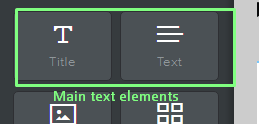
Types of text elements
Website Builder provides two primary text elements:
Title: Use Title elements for headings and section labels.
Titles:
- Stand out visually
- Help organize your page
- Create a clear content hierarchy
They are typically placed at the top of sections or used to introduce new content areas.
Text: Use Text elements for paragraphs and detailed content.
Text elements:
- Support multiple paragraphs
- Maintain consistent formatting
- Help structure your main content
For better layout control, avoid placing too much content in a single block. Instead, break content into multiple text elements.
When to use each
- Use Title for section headings and key messages
- Use Text for descriptions, explanations, and supporting content
This combination improves readability and helps visitors scan your website easily.
How to add text
- Open the Website Builder editor
- Drag a Title or Text element onto your page
- Click inside the block to start typing
- Drag the element to reposition it within your layout
Text elements can be placed within different sections to match your page structure.
Editing and formatting text
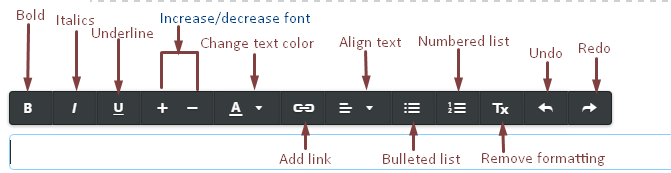
When you click inside a text block, a formatting toolbar appears.
This toolbar allows you to:
- Bold, italicize, or underline text
- Adjust font size
- Change text color
- Align text (left, center, right)
- Add bullet points or numbered lists
- Insert links
- Remove formatting
To connect content or external pages, you can add hyperlinks to your text.
If you want consistent typography across your entire website, you can change your site’s fonts instead of editing each block individually.
Layout best practices
To keep your design clean and readable:
- Use headings to break up sections
- Avoid large blocks of text
- Use bullet points for lists
- Maintain consistent spacing between elements
These practices improve readability across both desktop and mobile devices.
Make your changes live
Changes made in the editor are saved internally, but they are not visible on your live website until you publish.
After updating your content, remember to publish your website to make the changes live.
Next steps
- Learn how Website Builder content is structured
- Add hyperlinks to your text
- Change your site’s fonts for global styling
- Publish your website after editing