
After building your website with the WhoGoHost SiteBuilder, one of the most important steps is setting up your SEO Descriptions and Keywords. These help search engines understand what your website is about and determine how your pages appear in search results.
How to Add SEO Settings for Your Entire Website
1. Log in to your SiteBuilder.
2. Click on the Settings tab.
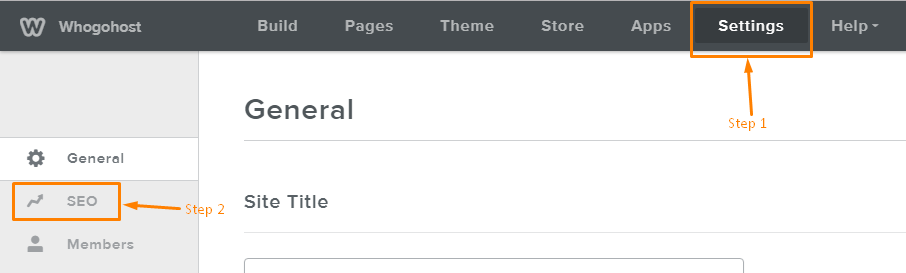
3. Select SEO.
4. Enter your site-wide Description and Keywords.
5. Save your changes.
These settings will serve as the default SEO information for your entire website.
How to Add SEO Settings for Individual Pages
You can also optimize each page separately for better visibility:
1. Click on the specific page from the sidebar.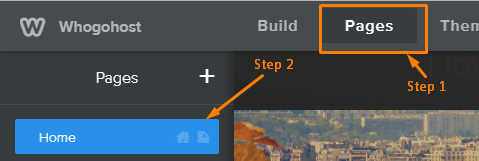
2. Select SEO Settings.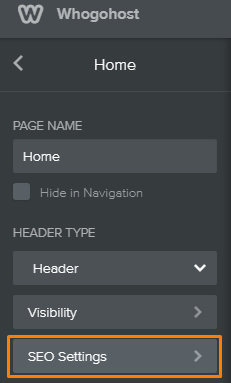
3. Enter a page-specific Description and Keywords.
4. Save your changes.
Important Tip:
Leave the SEO settings of your Homepage blank so it can rely on the general site-wide SEO settings instead. All other pages should have their own unique SEO settings.
Writing Effective Descriptions
- The Description field is the most important SEO field.
- This is what search engines display in their results.
- Your description should be 2–3 clear sentences that explain what your site or page is about.
- A good description helps visitors quickly understand your business before they even click your link.
Page descriptions work just like site-wide descriptions but should be specific to the content on that page.
Using Keywords Correctly
- Use 10–20 relevant keywords related to your content.
- These should match the actual words used across your website.
- Avoid using unrelated or misleading keywords, as search engines may ignore them.
Keywords are only effective when they naturally align with your website content.
Final Steps
- Always click the Publish button after adding or updating your SEO settings.
- Changes will not reflect on your live website until the site is published.
- SEO results are not instant. It usually takes a few weeks for search engines to reflect your updates.
- Also ensure that “Hide Site from Search Engines” is turned OFF so your site can be indexed properly.