
Choosing the right fonts can transform the look of your website and instantly make it feel more polished. Every theme comes with default fonts and color styles, but you’re not limited to those. You can change the appearance of almost any text on your site through the Theme tab.
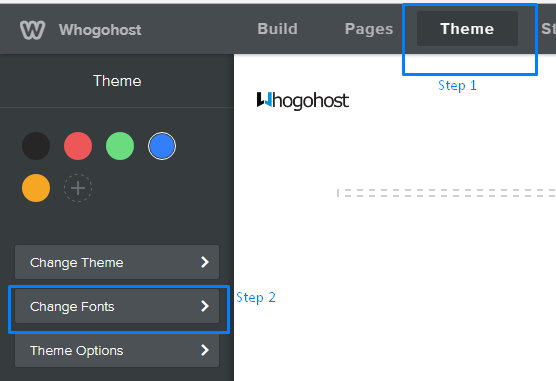
Steps to Changing Fonts
Click Change Fonts to begin. All font options are grouped based on where the text appears on your site.
As you hover over each item in the list, the matching text on your page will highlight so you can clearly see what you’re about to edit. If nothing highlights, scroll through the page or switch to another page, sometimes the text type you want to edit isn’t currently visible.
When you adjust a font style or any of its attributes, you’ll see the change happen immediately on your page. If you like the updated look, you don’t need to save anything manually. Click Change Font at the upper left to return to the main menu. If the changes don’t look right, click Reset to return to the theme’s default settings.
All fonts and style settings are available for every text element on your site, but some fonts naturally work better for larger text. Prioritize readability for most of your content and save the decorative or expressive fonts for titles or section headers.
Font changes apply universally to all elements of the same type. For example, every paragraph element will use the same font family, size, color, and styling. However, you can still fine-tune specific parts of your text. Highlight the text you want to modify, and a toolbar will appear. You can use it to adjust colors, tweak the size, or apply formatting to only the selected portion.
Want to make further changes? Here's how.