
Before you start, ensure your domain is registered and your email account is already created in your cPanel or WogoHost dashboard.
- Open Outlook → choose Manual setup or additional server type → click Next.

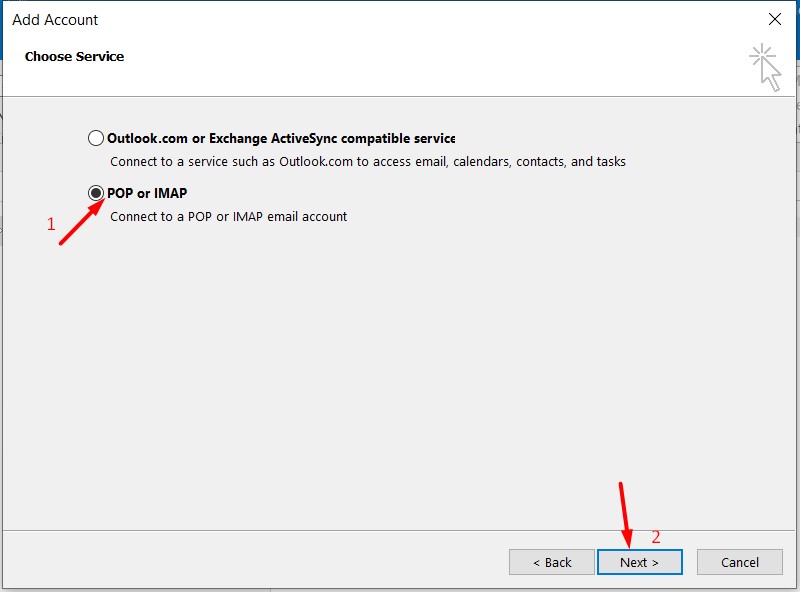
2. Select POP or IMAP → click Next.
3. Enter your account details:
- Your Name: The name you want displayed when sending emails
- Email Address & Username: Full email (e.g., email@yourdomain.com)
- Password: Your email password
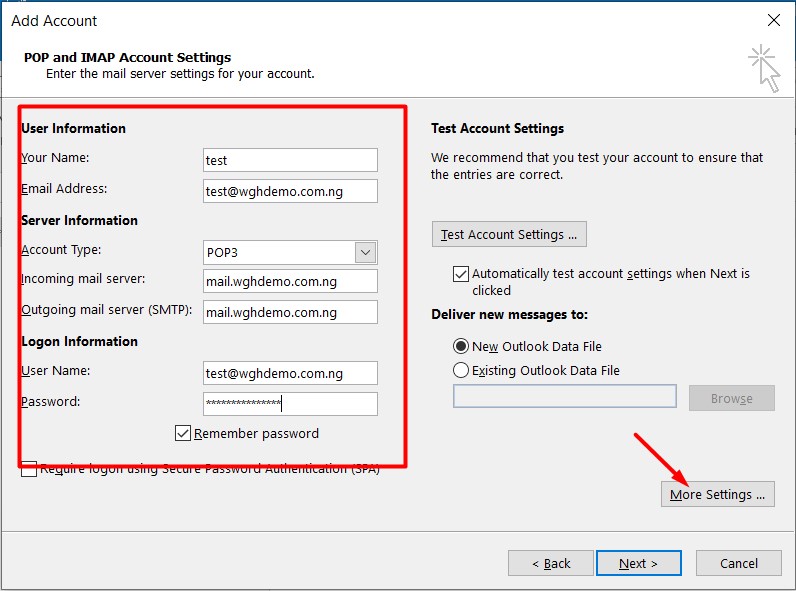
4. Server settings:
- Incoming Mail Server: mail.yourdomain.com
- Outgoing Mail Server (SMTP): mail.yourdomain.com
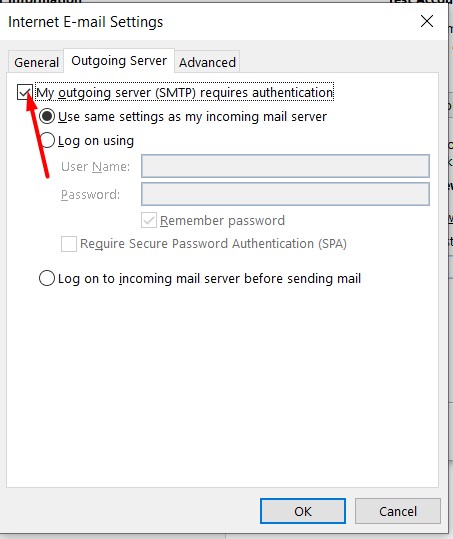
5. Click More Settings → go to Outgoing Server tab → check My outgoing server (SMTP) requires authentication → select Use same settings as my incoming mail server → click OK.
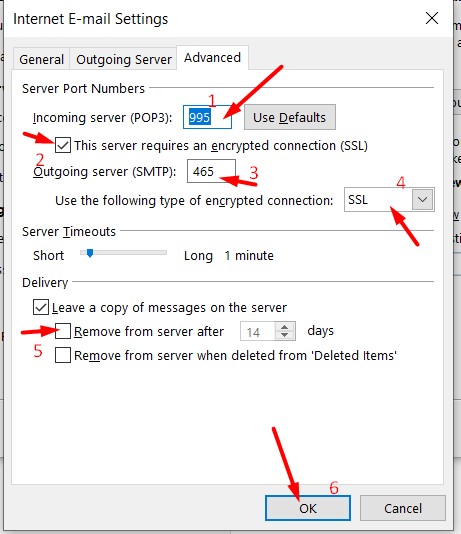
6. Advanced tab settings:
- If no encryption: POP3 → 110, SMTP → 25, 26, or 587; IMAP → 143, SMTP → 25, 26, or 587
- If using SSL: POP3 → 995, SMTP → 465; IMAP → 993, SMTP → 465
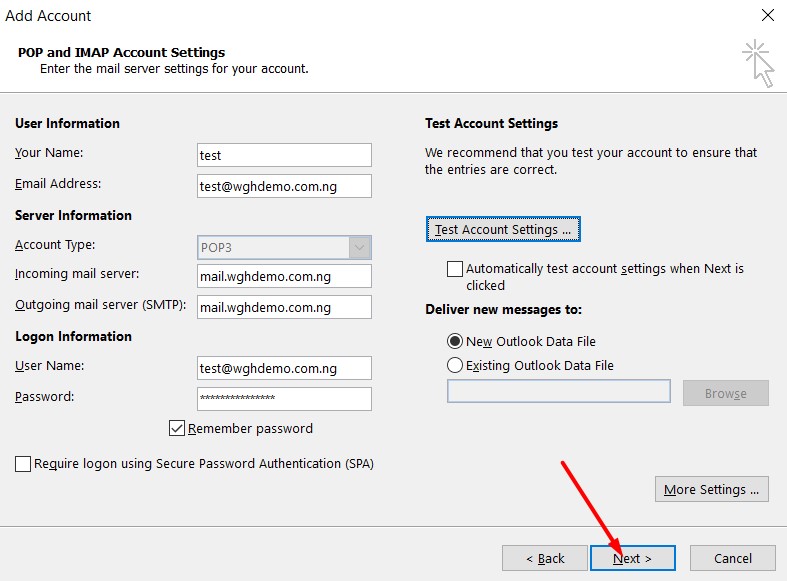
7. Click Next → wait for Outlook to test the account → click Finish.
That’s it! Your Outlook is now connected to your WogoHost webmail.
Need help? If you face any issues, send a mail to support@whogohost.com and our team will assist you.