
You can create as many pages as you want from the Pages tab. Opening this tab displays a full list of your pages in the sidebar. Follow the steps below to add new pages to your site.
Click the + icon to create a new page.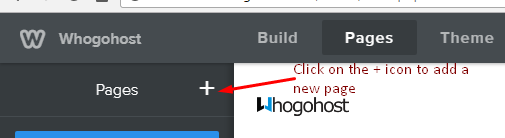
Add a New Page
Although you’ll see several page types, the Standard Page is the one you'll use most often. Selecting Standard Page—or any other option—creates a new page and immediately prompts you to name it. You’ll also see a few layout and functionality settings you can adjust. Once you select your options, the builder automatically opens the new page so you can start editing.
Click Save to add the new page to your Pages list.
Adding more pages follows these exact same steps. Every time you create a page, it automatically becomes part of your site’s navigation bar.
You can rearrange your page order by clicking and dragging pages up or down in the Pages list. Moving a page to the top automatically sets it as your Homepage, regardless of the name you give it. Reordering pages in the list also changes how they appear in the site’s navigation menu.
Subpages
You can create subpages under any main page. To do this, drag one or more pages beneath and slightly to the right of another page. Your navigation menu will display your main pages as top-level menu items. Hovering over any main item reveals its subpages in a dropdown.
Your main menu item can be a clickable page or a non-clickable menu header. To create a non-clickable header, click the + icon to add a new page and select Nonclickable Menu (last option). Name it, then return to the Pages tab to arrange your subpages under it.
To edit any page you’ve already created, open the Pages tab and select the page you want to update. It will load instantly in the editor so you can adjust anything you need.
Click here to learn how to add a non-clickable menu item to the navigation.